
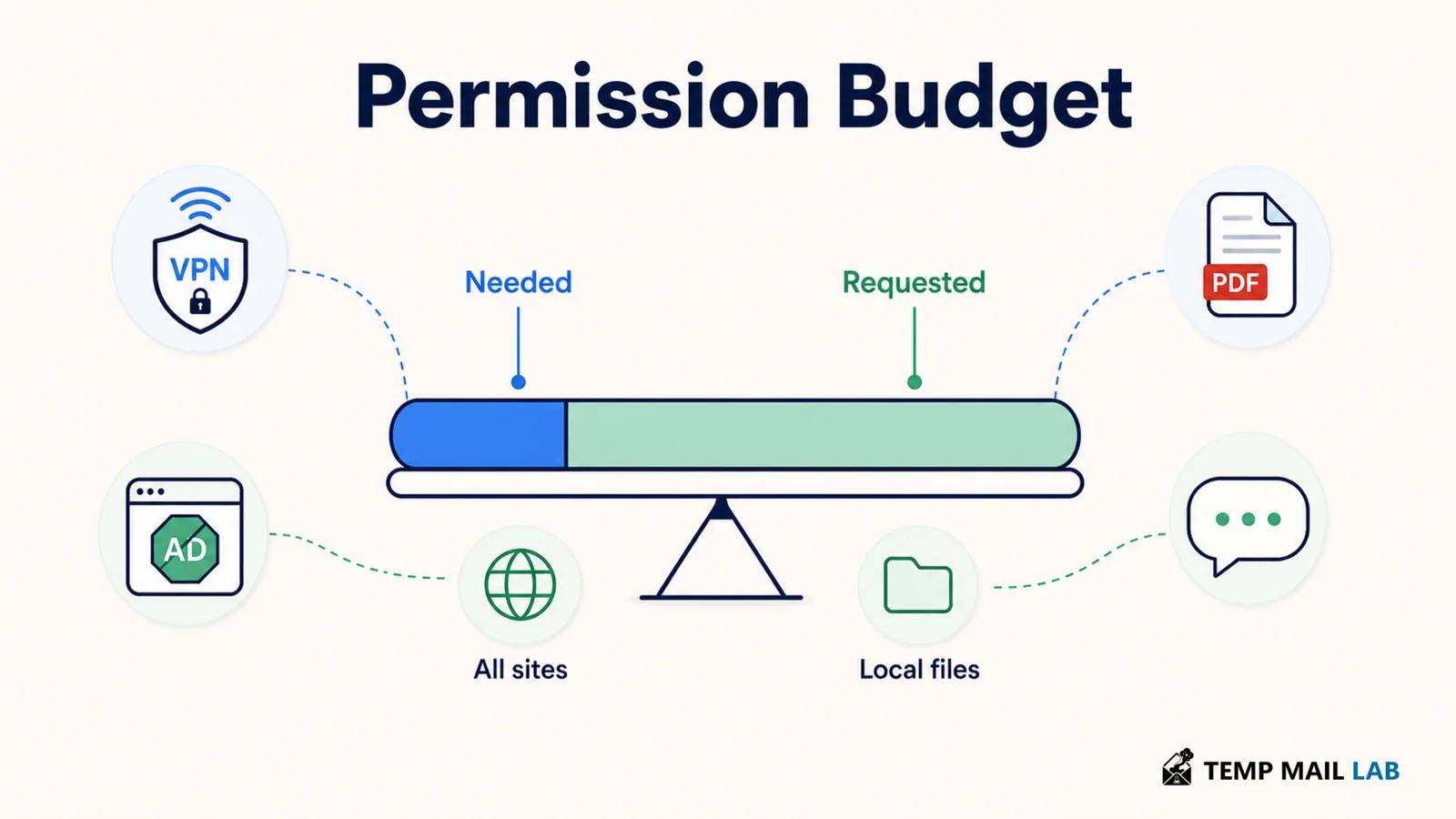
A security tool can be useful and still ask for access you would rather not give it.
That is not unusual.
A VPN needs enough control to route traffic through its service. An ad blocker has to work with webpages if it is expected to remove ads from them. A PDF utility obviously needs the document you choose to open or convert.
The interesting part begins when the permission seems larger than the job.
Suppose you install a PDF tool because you need to convert one document.
Selecting that document makes sense.
If the same tool also wants to work on every website and every local file opened in the browser, I would want to know what feature needs the extra reach.
There may be a perfectly ordinary answer.
The permission screen is where that second question begins.
Start with the feature you came for
It helps to ignore the product name for a moment and describe the job in plain language.
"I want this tool to convert one PDF."
"I want this extension to block ads."
"I want this VPN to route my browser traffic."
"I want this writing assistant to help when I ask it."
Now compare that sentence with what the software wants permission to do.
A selected PDF is easy to connect to a PDF converter.
Network access is easy to connect to a VPN.
Website access is easy to connect to an ad blocker because the blocker has to work on websites.
Other combinations take a little more explanation.
A VPN extension that also wants to interact with page content may have another browser feature that uses that access. A writing assistant that works automatically in text boxes may need more page access than one that only appears after you click its button.
The feature may justify the permission.
You should be able to see how.
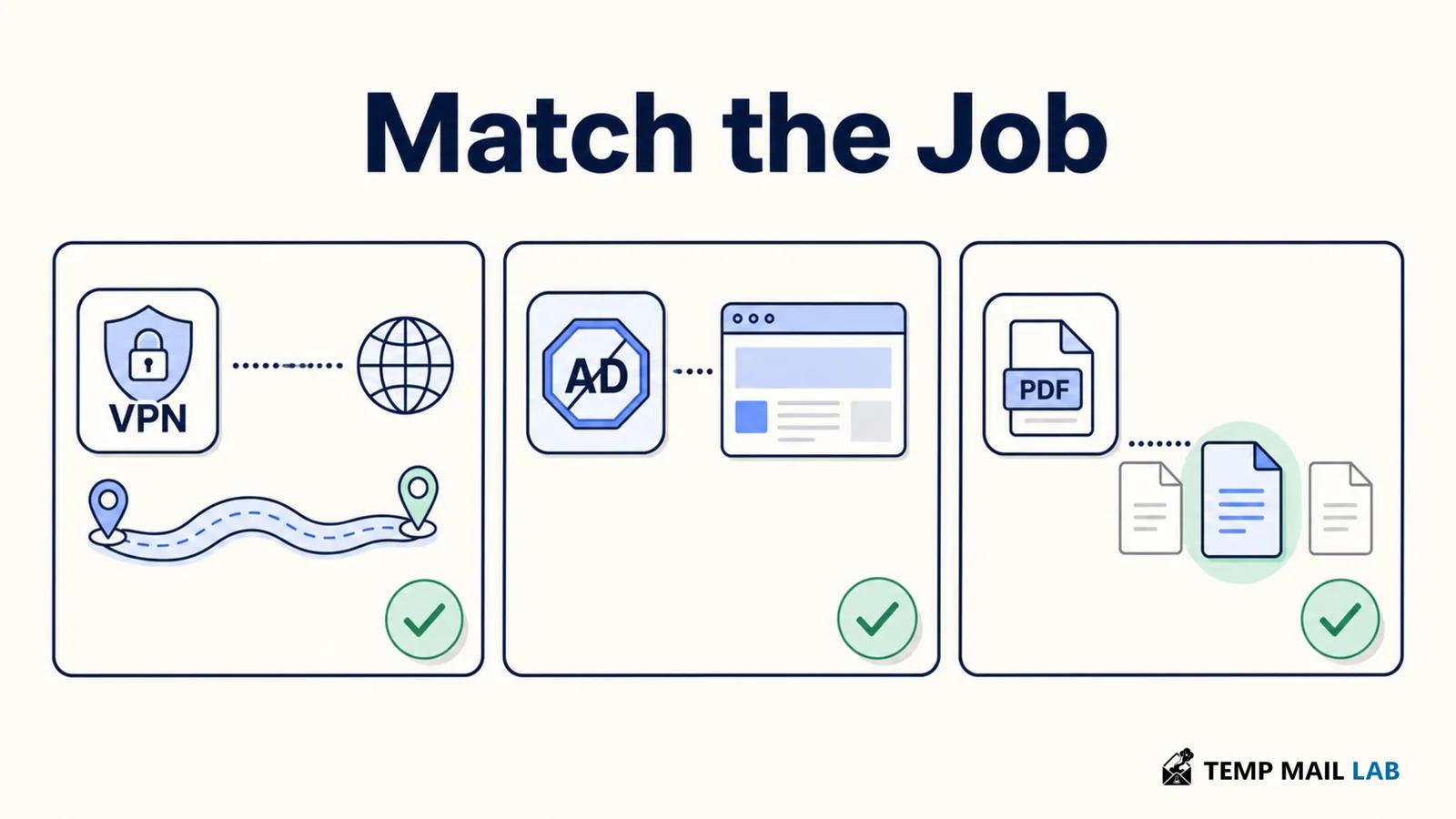
A permission budget is easier to use than a trust score
People often ask whether they can trust an extension.
I find that question too broad.
You might trust a password manager to work with login fields without wanting it to inspect unrelated documents.
You may be comfortable letting an ad blocker operate across websites while keeping a screenshot tool limited to the tab where you click it.
The software does not need one giant yes or no.
Each permission can be considered separately.
That is close to the security idea of least privilege.
NIST describes least privilege as giving a user or process only the resources and authorizations needed to perform its function.
For everyday software, the idea is fairly simple.
Give the feature enough room to work.
Avoid giving it extra room only because the install process made that easier.
The scope can differ in several ways.
One extension may work only on a specific website.
Another can work across nearly every site you visit.
A third may receive temporary access after you click its toolbar button.
The difference also appears with files.
Choosing one document is not the same as granting standing access to local files.
Neither is automatically the better design.
The important part is whether the larger scope is actually useful to the feature you need.
On-demand access can be enough for some tools
Imagine a small extension that cleans up the layout of the page you are currently viewing.
You click the extension.
It changes the page.
Then you leave.
That feature has a clear moment when access is needed.
Mozilla documents browser mechanisms such as activeTab that allow an extension to receive access after a user action rather than requiring permanent access to every site.
That model will not work for every extension.
An ad blocker expected to operate automatically across the web cannot wait for you to click its icon every time a page loads.
The comparison is still useful.
A feature that only does something when you ask for it may not need the same standing access as a feature that has to work continuously.
What an all-sites warning really tells you
Browser permission messages can sound severe.
One familiar example is permission to "read and change your data" across websites.
Mozilla explains that extensions with broad website access may be able to read page content and information entered into pages, depending on the permissions involved.
Mozilla extension permission messages
Think about an ordinary browser session.
You may open email first.
Then a company dashboard.
Later you visit online banking.
A document is opened from cloud storage.
An AI conversation sits in another tab.
At some point you check the weather.
The browser sees webpages throughout that sequence, but you probably do not treat all of those pages as equally sensitive.
An extension with permission to operate broadly can be present across much of that environment.
What it actually does there depends on the extension.
A password manager may look for login forms.
An ad blocker may work with network requests and parts of the page while filtering advertising.
A writing assistant might wait for a text field.
Some extensions may barely do anything on a particular page.
The permission does not describe a diary of everything the extension has read. It describes the space in which the browser has allowed it to operate.
That is why the next question should be about the product rather than the warning itself.
What does it actually use the access for?
A writing assistant shows why page sensitivity matters
Suppose a writing extension checks text while you type.
On a public forum, perhaps that feels routine.
Now open your webmail and begin writing about a confidential project.
The extension's permission did not change when you switched tabs.
The information underneath it did.
Move again to an AI conversation containing private source code and the same issue appears.
This does not mean the writing assistant is secretly collecting those conversations.
It means the usefulness of its access needs to be considered alongside the kind of information on the page.
A tool that makes sense on one website may be unnecessary on another.
That is a user decision the browser cannot make automatically.
Access and transmission are different questions
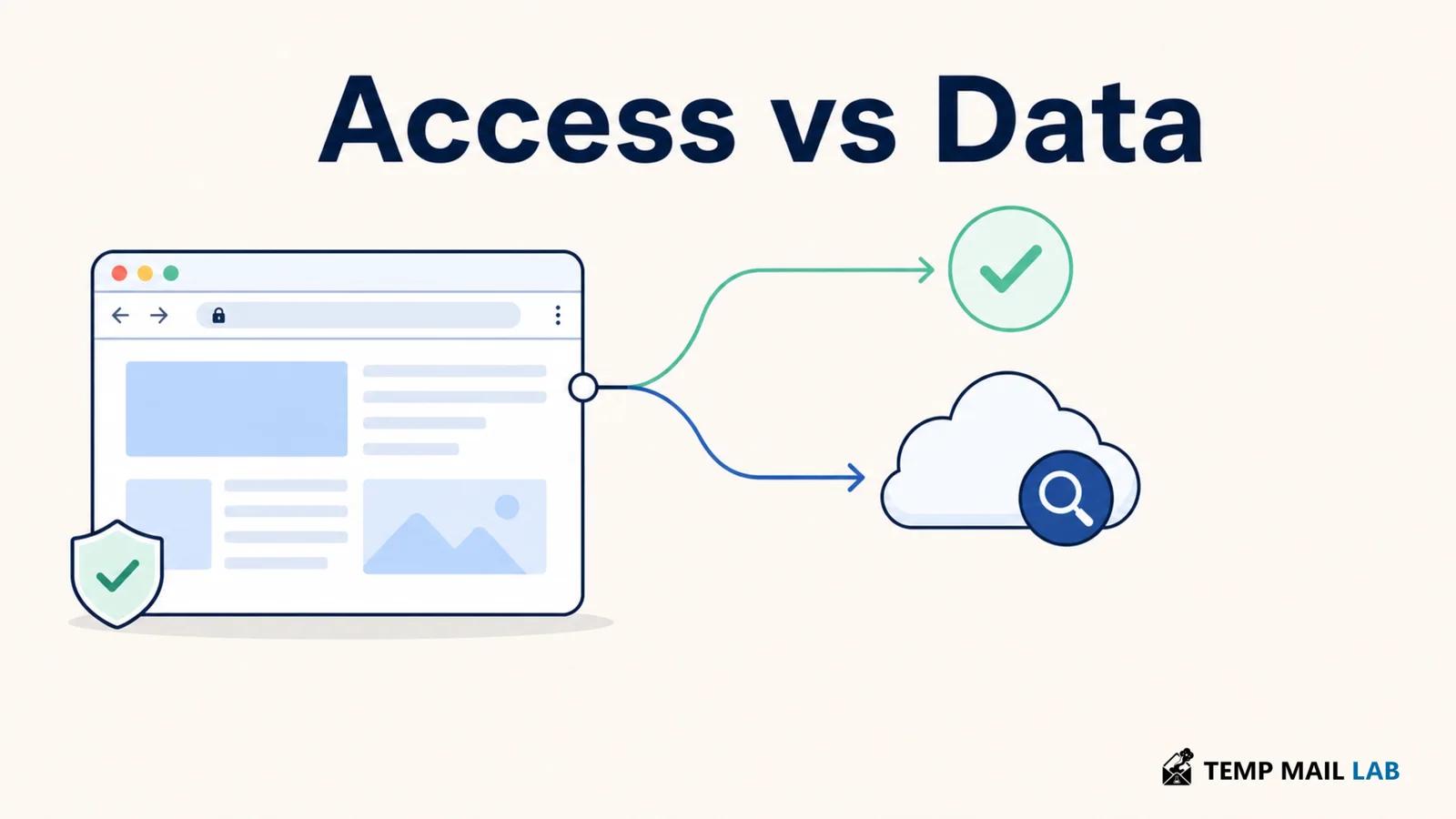
Suppose two extensions can interact with the same page.
One performs its work locally.
The other sends some information to a server because part of the feature runs in the cloud.
The browser permission may look similar in both cases.
The data path is different.
Take a writing tool.
One version could analyze text on the device.
Another could send selected text to a remote model and return the result.
Both may need page access before either design can work.
Only the second design requires that text to leave the browser for that feature.
The same distinction can appear with security tools.
An ad blocker can apply filtering rules locally.
A VPN extension can have diagnostic systems that communicate with its provider.
A PDF utility may upload the document because conversion happens on a server.
Those are not automatically bad designs.
They simply create more places where information can exist.
Once data leaves the device, I want to know a few things.
What was sent?
Why was it needed?
Does it remain on the server afterward?
Is it linked to an account?
Does another company receive it?
Can optional collection be disabled?
That information normally comes from documentation, settings, and privacy disclosures rather than from the permission prompt.
Mozilla has begun making that distinction more visible for supported Firefox extensions.
Its guidance describes disclosures for categories such as browsing activity, website content, search terms, authentication information, personal communications, technical information, and interaction data.
Firefox extension data collection guidance
That puts two different questions next to each other.
Where can the extension operate?
What does it say it collects or transmits?
The answers do not have to be the same.
Local documents deserve special attention
A file from your computer can appear inside a browser tab and still be very different from an ordinary website.
Imagine opening a private contract from your desktop.
The browser displays it.
To you, it may look similar to any other tab.
But the document may contain names, signatures, financial information, or internal company details that were never meant to leave the device.
Mozilla's Firefox 153 developer notes describe local-file access as a separate permission control, with file access disabled by default.
Firefox 153 developer release notes
That separation is useful.
An extension that needs to work on websites does not automatically need every local file shown inside the browser.
Return to the PDF converter example.
Choosing one document for conversion creates a very clear boundary.
You picked that file because you wanted the tool to process it.
Permanent access to local files creates a broader relationship.
Maybe the application genuinely needs it.
If so, the product should have a feature that explains why.
Sensitive pages change how much access matters
A screenshot extension operating on a public news article is one situation.
The same extension operating on a payroll dashboard is another.
Nothing magical happened to the permission.
The content changed.
That is why I pay more attention to extension access on pages containing things such as banking information, email, cloud documents, health records, password-management pages, company systems, private AI conversations, or customer information.
This is not a list of places where extensions should never be allowed.
A password manager has an obvious reason to work on login pages.
A company may require a security extension on internal systems.
The point is that sensitive information makes unnecessary access more expensive.
If an extension has no useful job on a particular sensitive site, there is little benefit in having it there.
You can review that without reading the source code
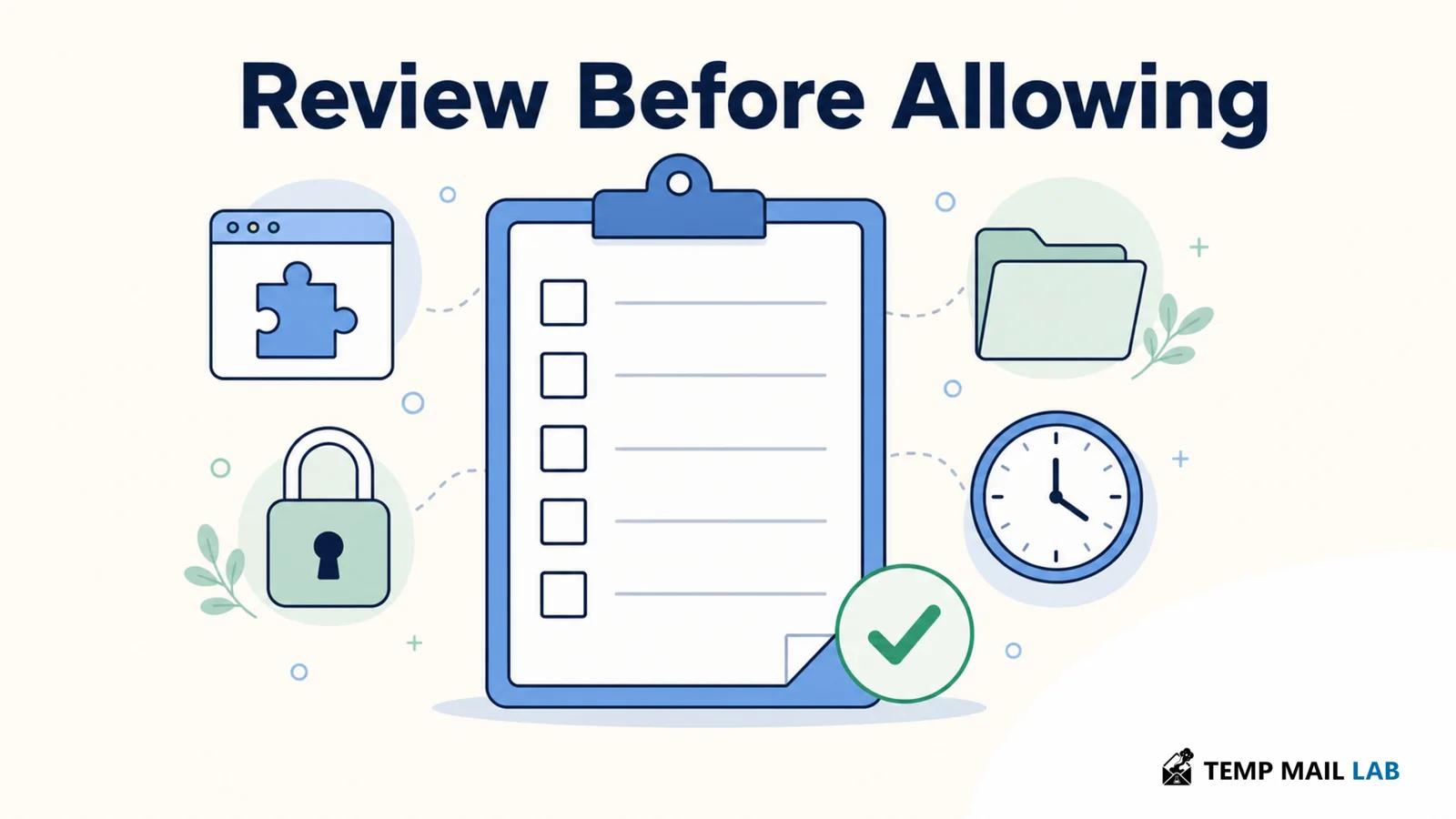
A useful review can begin with the store page.
Say exactly what you want from the product.
Then look at the main permissions.
For some tools, the connection will be obvious.
An ad blocker needs to work on websites.
A password manager needs to recognize login forms.
A VPN needs access related to routing traffic.
Then look at whatever does not fit as neatly.
Why does a PDF extension need broad website access?
Why does a VPN extension need access to page contents?
Why does an AI writing tool want to work on sites where you never use its writing feature?
The answer may be in the documentation.
Perhaps the PDF extension includes an annotation feature.
Maybe the VPN extension has phishing protection that examines pages.
The AI tool may be designed to offer suggestions automatically in every text field.
Once the feature is clear, you can decide whether you want it.
The important part is not filling in the explanation yourself when the publisher has not provided one.
Sometimes the simplest option is enough
A PDF is a good example because the same job can be handled in several ways.
If you only want to read the document, the browser's built-in viewer may already solve the problem.
Conversion is different.
Maybe you use a desktop program. Maybe you upload the document to a website. Maybe a browser extension performs the conversion for you.
I would not rank those three choices from "private" to "not private" without knowing how each one works.
A desktop program may keep the entire job on the computer, or it may quietly rely on an online service.
A conversion website obviously needs the file to reach its server before the server can process it.
An extension could do either. It might convert locally, or it might act as a convenient front end for a cloud service.
The useful thing to know is where the document actually goes.
That usually matters more than whether the button you clicked lived in a website, an extension, or a desktop application.
The same choice appears with AI writing tools.
Keeping an assistant in a separate tab is a little less convenient because you have to move the text yourself. A browser extension can put the same kind of help directly beside the field where you are writing.
For someone who uses that feature constantly, the convenience may be worth giving the extension access where it needs to work.
For occasional use, opening another tab may be easier to understand. The assistant is only involved when you deliberately take something to it.
Neither arrangement is the universal answer.
They simply put the boundary in different places.
Broad permission can be normal for the job
An ad blocker that cannot work on most websites would not be much of an ad blocker.
A password manager limited to one login page would have the same problem.
Security software often needs to inspect something before it can protect it, so broad access is not automatically suspicious.
The details around that access are what separate one product from another.
Take two ad blockers with almost identical browser permissions.
One downloads filter lists and mainly applies them on the device.
The other also offers account synchronization, shopping features, cloud services, and analytics.
They may both block ads well.
The second product simply has more going on around the blocker.
That gives you more things to understand, not necessarily more reasons to reject it.
Chrome's guidance for extension developers recommends requesting permissions that are needed for the extension's purpose and using optional permissions when additional access belongs to a feature that is not always required.
Chrome permission warning guidance
From the user's side, that can make a product easier to evaluate.
If an extra feature needs extra access, seeing the request when the feature is turned on gives the permission some context.
A useful extension does not have to run everywhere
Sometimes I want to keep an extension but do not need it on most of the web.
That is different from wanting to uninstall it.
Browser controls can give you a middle option.
Depending on the browser and extension, site access may be restricted to certain domains. Private-window access may have its own switch. Optional permissions can sometimes be removed later. Disabling the extension until it is needed is another possibility.
Mozilla documents optional-permission controls in Firefox's Add-ons Manager.
Manage optional Firefox extension permissions
Consider a company extension used on one internal dashboard.
Perhaps you open that dashboard every Friday and never need the extension anywhere else.
Reinstalling it every Friday would be pointless.
Letting it operate on unrelated personal sites may be pointless too.
Keeping it installed while limiting it to the company site is a much more ordinary arrangement when the browser supports it.
The product changes even when the icon does not
An extension can sit in the toolbar for years.
During that time, the software behind the icon may change considerably.
The first version might have done one small thing.
A later release adds synchronization.
Another adds diagnostics.
Eventually an AI feature appears.
If the extension already has access to the websites that the new feature needs, the browser may not have to ask you for exactly the same permission again.
The toolbar is not a very good record of what has changed.
An extension can keep the same icon and the same name while the software behind it becomes a much larger product.
Imagine installing a simple tool that does one job in the browser. A year later it adds account synchronization. Later there is an optional cloud service. Another update introduces an AI feature.
You may notice those changes in the interface, but you will not necessarily see a new permission request every time.
The reason can be fairly ordinary.
If the extension already had permission to work on the pages required by the new feature, there may be nothing new for the browser to ask you about.
That does not mean the feature received no access.
It means some of the access was already there.
This is one reason I occasionally look at the release notes for extensions I have kept for a long time.
There is little value in studying every maintenance update. A change from version 4.2.1 to 4.2.2 probably does not deserve an evening of investigation.
A new cloud service is different.
So is a new account system, an AI assistant, or a feature that begins processing information in another place.
Those changes can alter the relationship between the extension and the information available to it even if the original permission screen never changes.
The company behind the extension can change too.
Software gets acquired.
Projects move to new owners.
A small independent extension can eventually become part of a much larger product.
The acquisition itself tells you very little about whether the extension is safe. Sometimes the new owner changes almost nothing.
But the name in the toolbar is not enough to tell you that either.
If I installed an extension three years ago, I made a decision about the product that existed three years ago.
I still have to decide whether I want the product that exists now.
Security tools are not an exception
A security feature often has a perfectly good reason to inspect something.
Consider an extension that checks links in webpages for phishing.
It obviously needs to know which link it is checking.
Suppose you are reading an AI conversation and the extension notices a URL inside one of the messages.
There are several ways the check could happen.
The extension might already have a local list of known malicious addresses and compare the URL with that list.
Another product might send the URL to an online reputation service.
A third system could send more than the address because its detection model uses the surrounding text as additional context.
All three products could describe themselves as checking suspicious links.
They do not handle the page in exactly the same way.
This is why the explanation "it needs access for security" only gets me part of the way.
I also want to know how the security check is performed.
If a URL is sent somewhere, where does it go?
If nearby text is included, why is that necessary?
Does the service keep the information afterward?
The answers may be completely reasonable.
What matters is that there is an answer.
The same issue appears with download scanners.
A tool cannot scan a file without receiving some kind of access to the file. That part is expected.
The interesting question is whether the file is examined on the computer or uploaded to another service for analysis.
The permission itself may not reveal that distinction.
Looking at the actual feature usually makes the permission easier to judge
Suppose I need to convert a PDF.
I install an extension because I expect to use it a few times each month.
Access to a document that I deliberately choose for conversion is easy to understand.
Now imagine that the same extension is allowed to operate across most websites.
That may still have a sensible explanation.
Perhaps it detects PDF documents embedded in webpages.
Maybe it adds tools to PDFs that are opened directly inside the browser.
It could include a feature for saving webpages as PDF files.
Any of those could explain why the extension needs to interact with websites rather than only with files selected from my computer.
I would look for that explanation in the product itself.
What I would not do is invent one.
If the store listing describes nothing beyond basic file conversion and the documentation never explains the wider access, the permission remains a question rather than becoming harmless by assumption.
Browser controls can sometimes make that question less important.
If I only use the converter occasionally, I may be able to let it work after I click the extension rather than allowing it to run constantly.
A tool that exists only for one company dashboard could be limited to that domain.
An ad blocker is a different case.
If I restrict an ad blocker to one website, it cannot do its normal job on the rest of the web.
The same broad permission can therefore make sense for one extension and look unnecessary for another.
The permission is only half of the comparison.
The feature supplies the other half.
The page underneath the extension matters too
Imagine using a screenshot extension on a public news article.
There may be almost nothing private on the page.
Now open the payroll system used by your employer.
The screenshot extension did not suddenly become a different program.
Its browser permission may also be exactly the same.
What changed is the information in the tab.
The page may now contain employee names, salary information, tax details, or internal company records.
That makes access which felt unremarkable on the news site much more important.
The same situation appears in webmail.
A browser extension that is useful on an ordinary website may have no job at all while you are reading private email.
Online banking, cloud documents, private AI conversations, customer dashboards, health portals, and password-management pages create similar situations.
This does not mean extensions should disappear whenever a page contains sensitive information.
A password manager needs to work around login forms.
A company may deliberately install a security extension on internal systems.
There is a reason for those tools to be present.
The less obvious case is an extension that happens to be there only because it was given access to every site during installation.
If I use a tool on one dashboard, I gain very little from letting it operate on twenty other sites where I never use the feature.
That is where per-site controls become useful.
The browser may already solve part of the problem
It is also worth asking whether an extension is necessary in the first place.
PDFs are a simple example.
Reading a PDF does not normally require another extension because modern browsers already include a viewer.
Editing or converting the file is a different job.
For that I might use a desktop application, a website, or a browser extension.
The category of the tool does not tell me where the document goes.
A desktop application may process everything locally.
Another desktop program may upload the document to its own service.
A conversion website usually needs the file to reach a server if the conversion happens there.
An extension could work either way.
It might contain the conversion code itself, or it might simply make an online conversion service easier to reach.
The important part is the actual path of the document.
A similar choice exists with writing assistants.
Suppose I use an AI writing tool a few times a day.
An extension that appears beside every text box is convenient.
I do not have to copy text into another tab and bring the result back.
That convenience also means the extension needs to be present where I write.
For someone who uses the feature constantly, that may be a perfectly reasonable trade.
If I use the assistant once every few weeks, opening it in another tab may be simpler.
I decide when the text is given to the service because I have to move it there myself.
The separate tab is not automatically private and the extension is not automatically invasive.
They simply create different boundaries.
Old extensions deserve attention mostly because they are easy to forget
A browser tends to collect extensions over time.
One was installed for a university course.
Another was needed to download a particular file.
A shopping extension helped with one purchase.
A developer tool belonged to a project that ended two years ago.
None of those programs has to be malicious for the list to become a problem.
They simply remain installed after the reason for installing them has disappeared.
That gives me a very easy rule for removing some extensions.
If I no longer remember what useful job an extension performs, I probably do not need to keep its access either.
Removing old tools has another benefit.
The remaining extension list becomes much easier to understand.
If five or six extensions are installed, I can usually explain why each one is there.
With a browser full of old utilities, permission warnings become background noise because almost everything appears to have access to something.
There is no privacy prize for having the fewest extensions possible.
I just prefer a browser where the software I have deliberately added is still recognizable.
Some permissions will remain difficult to explain
Sometimes the review does not produce a satisfying answer.
The extension appears to perform one small task.
Its permission is much broader than that task seems to require.
The privacy policy talks about the company's website but says very little about the browser extension.
The documentation never explains the extra access.
Perhaps there is a legitimate technical reason that simply has not been documented well.
I do not have to decide that the extension is malicious in order to be uncomfortable with that arrangement.
There may be another product whose behavior is easier to understand.
The browser may provide the feature without an extension.
Or I may decide that I value the original tool enough to keep using it despite the wider permission.
That is a different decision from pretending the question does not exist.
Broad access also has perfectly normal cases.
An ad blocker is expected to operate on websites across the web.
A password manager has to recognize login forms on more than one domain.
A security tool may need to inspect links or downloads before it can warn about them.
The size of the permission is therefore not a useful verdict by itself.
I find it more useful to follow the information for one step beyond the permission screen.
If the extension sees something, what does it do with it?
For some tools, the answer may be that the relevant processing happens inside the browser.
For others, part of the feature depends on an online service.
Either design can make sense.
The important difference is that I know which one I am using.
A browser permission tells me where an extension is allowed to operate.
It does not tell me everything the extension does while it is there.
Once those two ideas are kept separate, the warning becomes much easier to read.