
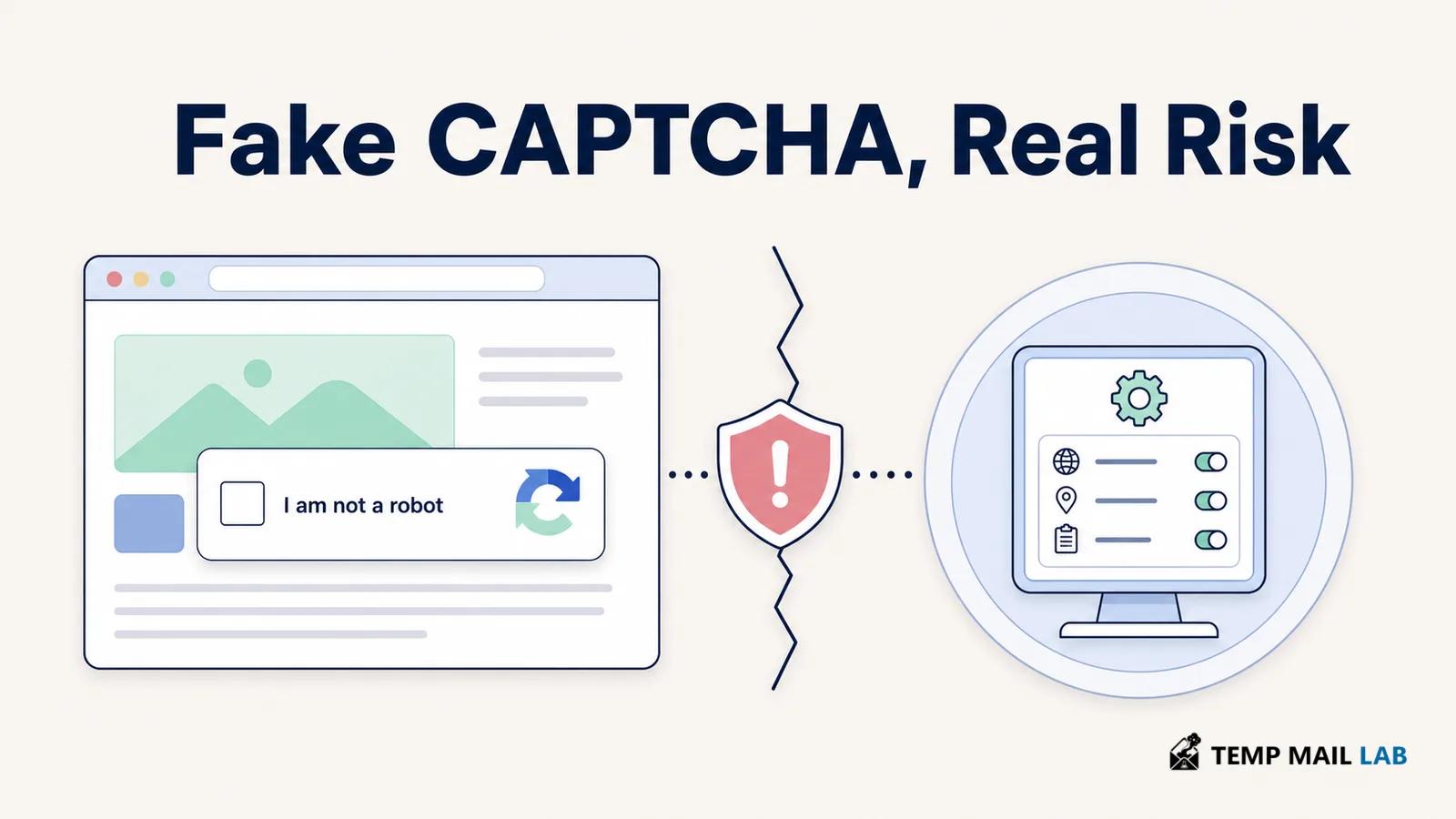
When a CAPTCHA Tells You to Run a Command, Stop
You are trying to open a page and a familiar-looking verification screen appears.
There is a checkbox. Maybe a logo. Perhaps the page says it is checking whether you are human.
So far, nothing seems unusual.
Then the instructions change.
Press Windows + R.
Paste something.
Press Enter.
That is the point where the page stops behaving like an ordinary CAPTCHA.
A website does not need you to open Windows Run, PowerShell, Command Prompt, macOS Terminal, or another system tool to prove that you are human.
If a verification page asks you to do that, close it.
This pattern has become associated with a social-engineering technique Microsoft calls ClickFix.
Microsoft: ClickFix social engineering
The trick is less technical than it first appears.
The page presents some kind of problem, gives you a convenient-looking solution, and relies on you to perform the dangerous part yourself.
The supposed fix may install an information stealer, a remote-access tool, or some other malware.
The most important clue is therefore not the logo on the page.
It is the action the page wants you to take.
A normal CAPTCHA stays in the browser
Real CAPTCHA systems come in several forms.
One site may ask you to select pictures containing traffic lights.
Another gives you a checkbox.
Some systems perform most of the check in the background and barely ask you to do anything.
The details change, but the interaction belongs to the website.
You click something on the page and continue.
You do not normally leave the browser, open an operating-system utility, paste an unfamiliar command, and run it.
That distinction is useful because a fake page can copy almost everything else.
Colors are easy to imitate.
Logos can be copied.
A loading animation takes little effort.
Even wording such as "Verifying that you are human" tells you almost nothing about who built the page.
But asking a visitor to run a command is a very different kind of action.
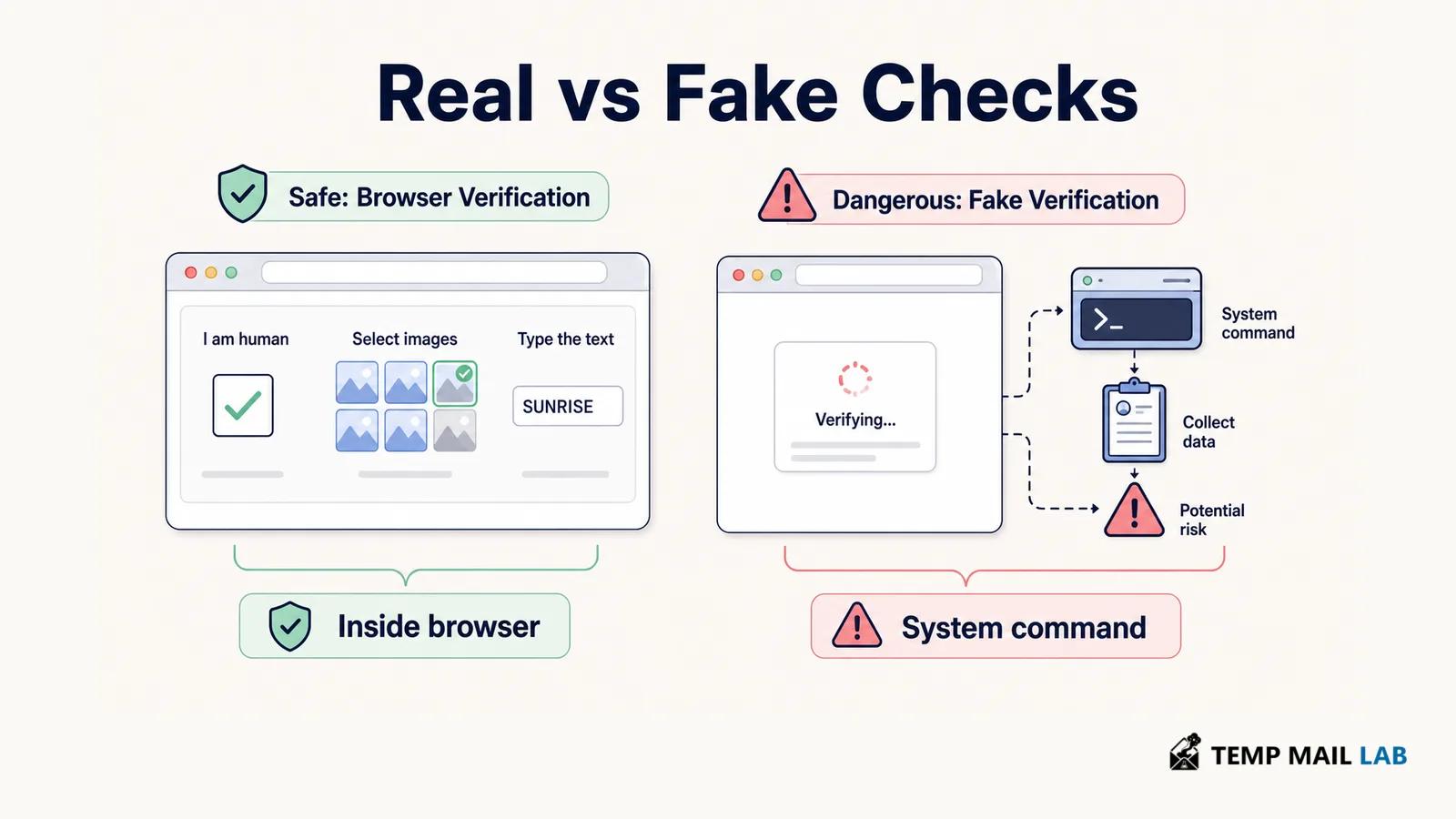
I would treat instructions involving Run, Terminal, PowerShell, Command Prompt, or a developer console as a reason to stop rather than as another verification step.
The same goes for a page that claims you must disable antivirus protection or install some unrelated extension merely to complete a CAPTCHA.
A legitimate site may have trouble verifying you.
Your network may look unusual.
A VPN might cause another challenge.
Browser settings can interfere with parts of the page.
Those problems do happen.
They still do not create a good reason for a website to hand you arbitrary system commands.
If a known site is having trouble, reload it, open it through a bookmark, try another browser, or use the site's official support material.
For more context about the ordinary technical information a webpage can receive during a visit, see what websites can collect during a visit.
How someone ends up on one of these pages
The fake CAPTCHA is often not the beginning of the story.
You may arrive there after clicking an advertisement.
Another person might follow a link in a phishing message.
A legitimate website can be compromised.
A search result can lead to a malicious page.
Sometimes the lure has nothing to do with CAPTCHA at first.
A video supposedly cannot play.
A browser appears to have an error.
A page says something needs to be repaired before you can continue.
Eventually the visitor is shown a set of instructions that moves the task outside the browser.
That movement is important.
The webpage itself operates within restrictions imposed by the browser and operating system.
Convincing the person to run a command can give the attacker access to capabilities the webpage did not have on its own.
The victim becomes part of the execution chain.
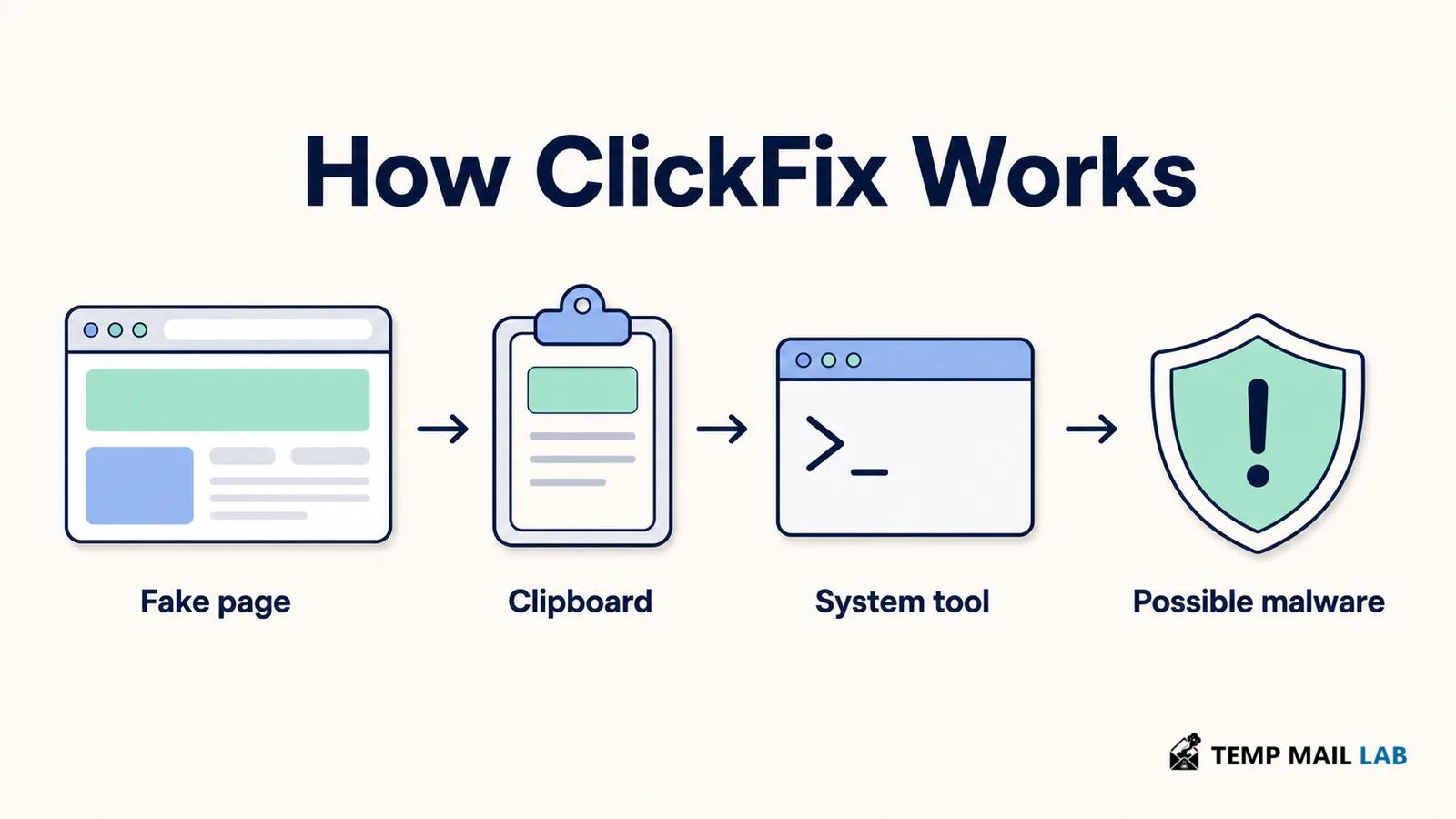
The clipboard helps hide the uncomfortable part
A fake verification page may tell you that the necessary text has already been copied.
That feels convenient.
It also means you may never read what you are about to run.
Long commands are difficult to inspect at a glance, especially when they contain encoded or deliberately confusing text.
Someone who believes the command is only repairing the browser has little reason to stop and decode it.
That is exactly what the attacker is relying on.
The command can start a built-in utility, reach another server, retrieve additional content, or launch a later stage.
The exact chain changes from campaign to campaign.
Microsoft has documented ClickFix activity involving trusted system tools and obfuscated scripts.
That is why the visible result after pressing Enter does not tell you much.
You might see a brief window.
You might see nothing.
The page may suddenly start working.
A security product could block part of the chain.
None of those outcomes proves that everything is fine.
If you ran an unknown command supplied by a webpage, the useful assumption is that something may have executed until you have better evidence.
The malware at the end is not always the same
ClickFix describes the persuasion technique rather than one specific piece of malware.
One campaign can deliver an information stealer.
Another may install something that gives an attacker remote access.
A third can act as a loader whose main job is to bring something else onto the computer.
Microsoft has documented ClickFix campaigns delivering malware including Lumma Stealer.
Microsoft: Lumma Stealer delivery and capabilities
An information stealer is particularly unpleasant because the original website may no longer matter once the malware is running.
The useful information may already be sitting elsewhere on the computer.
A browser can have saved passwords.
An active login can leave session data behind.
Autofill may contain personal information.
Browser extensions can hold their own data.
Some systems contain developer credentials, VPN information, cryptocurrency-wallet files, or email-client data.
What is collected depends on the malware.
There is no single list that every stealer follows.
That is also why the account open in the browser when the fake CAPTCHA appeared is not necessarily the only thing you need to think about afterward.
A stealer can search information stored across the device.
A saved session can matter as much as a password
Suppose malware steals a password.
Changing that password from a clean device is an obvious response.
Now suppose it also obtained session information from a browser.
That creates another problem.
Some services let you remain signed in for long periods without typing the password again. Information associated with that active session may have value to an attacker.
Changing the password is still important, but I would also look for options such as signing out other devices, revoking existing sessions, or reviewing recent account activity.
Multifactor authentication helps too.
It makes a stolen password less useful on its own.
None of this means every ClickFix infection successfully steals every active login.
It means that after an unknown command has been executed, it is worth thinking beyond only the password used on the page that started the incident.
ClickFix has appeared in more than fake CAPTCHA pages
Fake CAPTCHA screens are one of the easiest versions to recognize, but the underlying trick is broader.
A page invents or exaggerates a technical problem.
Then it supplies the "fix."
The user is asked to run it.
That same pattern can be placed behind a browser error, software-installation message, or another technical-looking interruption.
Microsoft has also documented a related ClickFix variant called CrashFix.
Microsoft: CrashFix ClickFix variant
In the activity Microsoft analyzed, a malicious browser extension created browser problems and later presented a fake security warning that encouraged the victim to execute a command.
That does not make an ordinary browser crash suspicious by itself.
Browsers crash for completely boring reasons every day.
What makes the situation interesting is the next instruction.
If a crash is followed by a webpage or extension telling you to open a system shell and paste a command, the problem has changed.
You are no longer simply troubleshooting a crash.
You are being asked to execute something supplied by the thing that claims to be helping you.
What to do if you stopped before running anything
If the fake page appeared and you closed it without running the command, that is a very different situation from completing the instructions.
A webpage can still receive the ordinary information available during a visit, and you may need to think about anything you downloaded or entered.
But seeing a fake CAPTCHA is not the same as executing the supplied command.
Close the page.
Do not reopen it to investigate.
If you downloaded a file from it, do not run the file.
If you entered credentials somewhere during the same chain, handle those credentials separately.
The serious ClickFix concern begins when the attacker persuades the visitor to perform the operating-system action.
If you did run the command
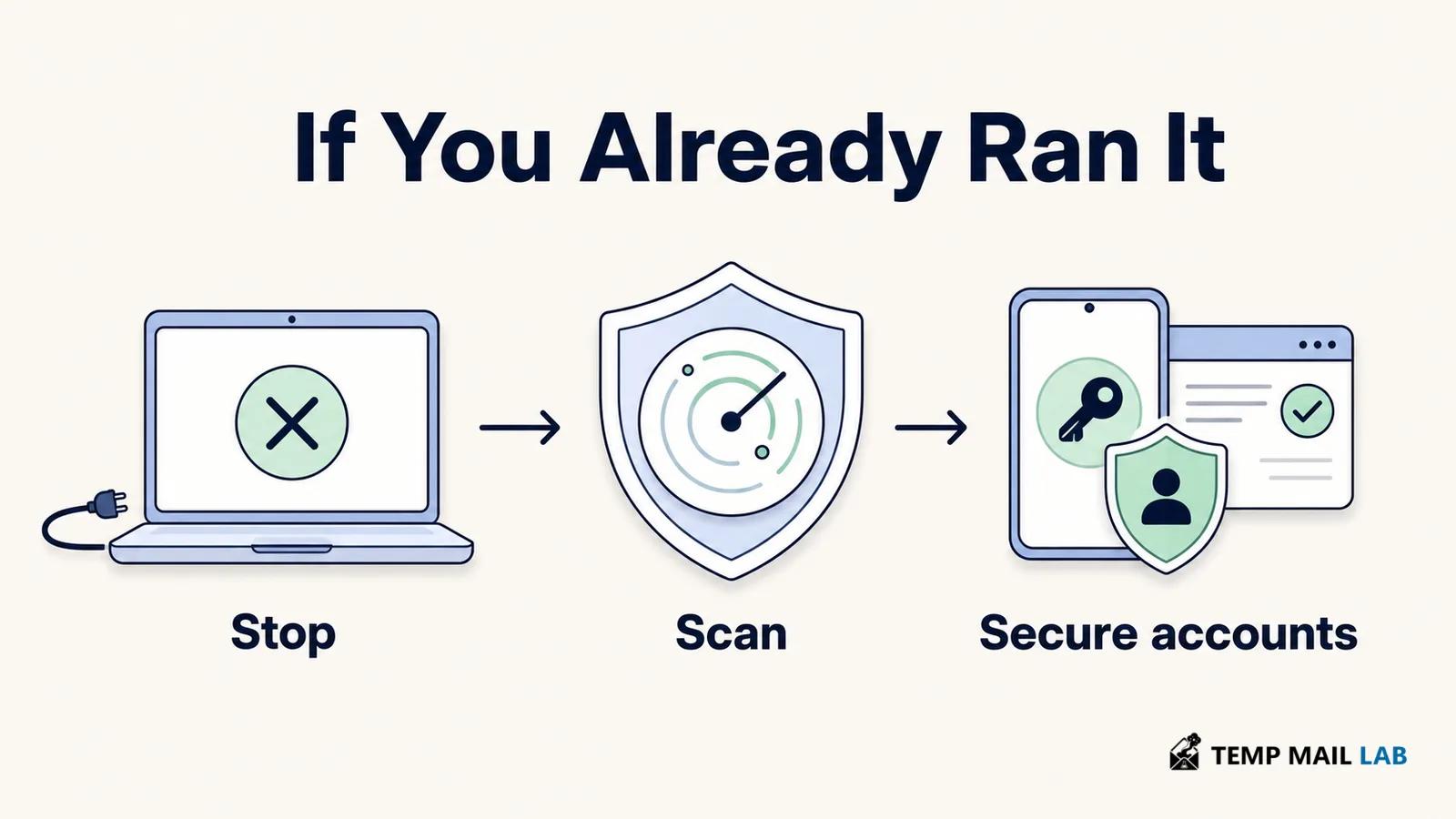
I would stop using the affected computer for sensitive accounts until the situation is clearer.
That means no banking login.
No password manager.
No work dashboard.
No email account where a password reset could give access to everything else.
The FTC recommends stopping activities involving passwords or personal information when malware is suspected.
FTC: Malware — how to protect against, detect, and remove it
For a work or school computer, I would contact the organization before trying to clean the machine independently.
Its security team may need evidence from the system, and deleting files or running random cleanup software can make investigation harder.
If the computer is visibly behaving as though something is still active, disconnecting it from the network can also be sensible.
Turn off Wi-Fi or unplug the network connection if you can do so safely.
Isolation does not remove malware.
It can, however, interrupt some ongoing network communication while you decide what to do next.
I would also avoid plugging in external drives or copying sensitive material from the machine until there is more confidence in its condition.
Run a scan using security software you already trust
This is not a good moment to search the web for an unfamiliar "malware cleaner."
Fake security tools are another common lure.
Use security software you already trust and update it through its normal interface.
On Windows, Microsoft provides Defender Offline, which can restart the computer and perform a scan from outside the usual running Windows environment.
Microsoft Defender Offline
A detection result is worth keeping.
Take note of the malware name, time, and action the security product reports rather than immediately forgetting the alert once something is removed.
That information can matter if unusual account activity appears later.
A clean scan is reassuring, but it should be interpreted alongside what actually happened.
If you know an unknown command executed and highly sensitive information was stored on the machine, the level of certainty you need may be higher than it would be for an ordinary browser pop-up.
Secure important accounts somewhere else
Use a different device that you trust.
Email is usually high on the list because access to an email account can be used to reset many other passwords.
Password managers, financial services, work accounts, and accounts that were already signed in on the affected browser deserve similar attention.
Change passwords where appropriate.
Do not reuse the same password between services.
Turn on multifactor authentication where it is available.
The account itself may tell you whether anything happened
After changing a password, I would spend a minute inside the account's own security page.
Not every service shows the same information. One may list recent logins. Another shows browsers and phones that still have active sessions. A third simply has a "sign out everywhere" button.
That is enough.
If I see an old laptop I recognize, there is no mystery.
If I see a device I have never owned, I remove it.
The same goes for a session that should have ended months ago. There is little reason to leave it active while I am already dealing with a possible compromise.
Financial accounts deserve a separate check.
Suppose the affected browser was already signed in to a payment service, or card information was saved on the computer. I would not use the suspicious machine to investigate that account.
I would take another phone or computer, open the provider the usual way, and check there.
With a bank, the number on the back of the card is useful. So is the bank's normal app.
I would not use a phone number that appeared on the page that caused the problem.
Cryptocurrency is less forgiving.
If wallet credentials or recovery information were available on the computer, waiting to see whether somebody uses them can be an expensive experiment. A completed crypto transfer may leave very little to recover afterward.
There is also an awkward fact about information stealers: they do not normally show you a list of what they copied.
Maybe nothing useful was taken.
Maybe a browser session was.
Perhaps a wallet file, password, document, or developer token was available.
You may never get a clean answer from the infected machine itself.
That is why I would base the response on what was available to the computer, not only on what I can prove was stolen.
Sometimes I would rather start again
Reinstalling Windows because a fake CAPTCHA appeared would make no sense.
Even after somebody runs a suspicious command, wiping the computer is not automatically the next step.
There are easier cases.
Perhaps Defender catches one known piece of malware immediately. It is removed, later scans stay clean, and the computer was mostly used for casual browsing.
I would feel differently about a work laptop that definitely ran an information stealer.
The same goes for a machine holding cryptocurrency keys, customer records, developer credentials, or access to important company systems.
In that situation I am not only asking, "Does the antivirus find anything now?"
I am asking whether I am comfortable trusting the machine again.
A company may already have an answer to that question in its security policy. Its IT team may want the device preserved for investigation, rebuilt, or replaced.
At home, the choice is more personal.
Sometimes a knowledgeable technician can work out enough about what happened that a reinstall would add little.
Sometimes nobody can say with much confidence what the command changed.
Starting from a clean installation can then be less troublesome than spending days wondering whether something was missed.
The fake page does not have to look fake
This is probably the part I would remember next time.
A bad CAPTCHA can look excellent.
There may be no spelling mistake.
The logo can be correct.
The spacing may look better than the real site.
A little loading animation proves nothing either.
None of that is expensive for an attacker to reproduce.
The useful clue is what happens after the page has your attention.
If it asks me to click a checkbox, that is the sort of thing a CAPTCHA does.
If it asks me to leave the browser, open Windows Run, paste text I did not write, and execute it, the appearance of the page stops mattering.
The same is true on a Mac if the instructions suddenly involve Terminal.
PowerShell is not malware.
Command Prompt is not malware.
Terminal is not malware.
They are ordinary tools.
What matters is who is deciding what I run in them.
A random webpage should not be making that decision for me.
I would apply the same skepticism to a verification page that tells me to turn off security software or install an extension that has nothing obvious to do with the site.
A genuine website can certainly malfunction.
Its CAPTCHA can fail.
A VPN can cause extra checks.
A browser setting may break something.
I would solve those problems from the browser side: reload the page, use the normal site, or check official support.
I would not let the broken CAPTCHA turn into a system-administration lesson delivered by a webpage I do not trust.
If you only saw the instructions, that matters
Suppose the page appeared, told you to press Windows + R, and you closed it.
That is not the same incident as somebody who pasted the command and pressed Enter.
The site may still have received ordinary browser information from the visit. Perhaps it knows an IP address, browser details, or whatever else the page normally receives.
But the operating-system command was not executed.
If you also typed a password into the site, downloaded something, or granted a permission, those actions should be dealt with separately.
Otherwise, there is no reason to return to the fake page and test what would have happened.
Close it.
If you were originally trying to reach a real service, open that service in the normal way.
The real account problem, if one exists, will still be there.
If you pressed Enter, the question changes
Once the command has actually run, I would stop thinking about the page as the main problem.
The computer is now more interesting than the CAPTCHA.
Use another device for important accounts.
Let trusted security software examine the affected machine.
If it belongs to work or school, tell the people responsible for it.
And if the computer contained access to money, important accounts, or valuable credentials, think about those separately rather than waiting for a visible symptom.
You do not need to know which ClickFix campaign you saw.
You do not need to identify the malware from the color of the CAPTCHA.
There is a much easier line to remember.
A CAPTCHA belongs in the browser.
When a page says that proving you are human requires Windows Run, PowerShell, Command Prompt, Terminal, pasted commands, or another operating-system tool, stop there.
The page may look real.
The instruction is the part that does not belong.