
An invoice shows up in your inbox.
The sender says a revised copy is waiting in Google Drive. You open the link and the browser really does go to Google. The domain is correct, the page looks normal, and the document preview loads without an obvious warning.
So far, nothing is fake.
Then the document asks you to click a button.
That is where the situation changes.
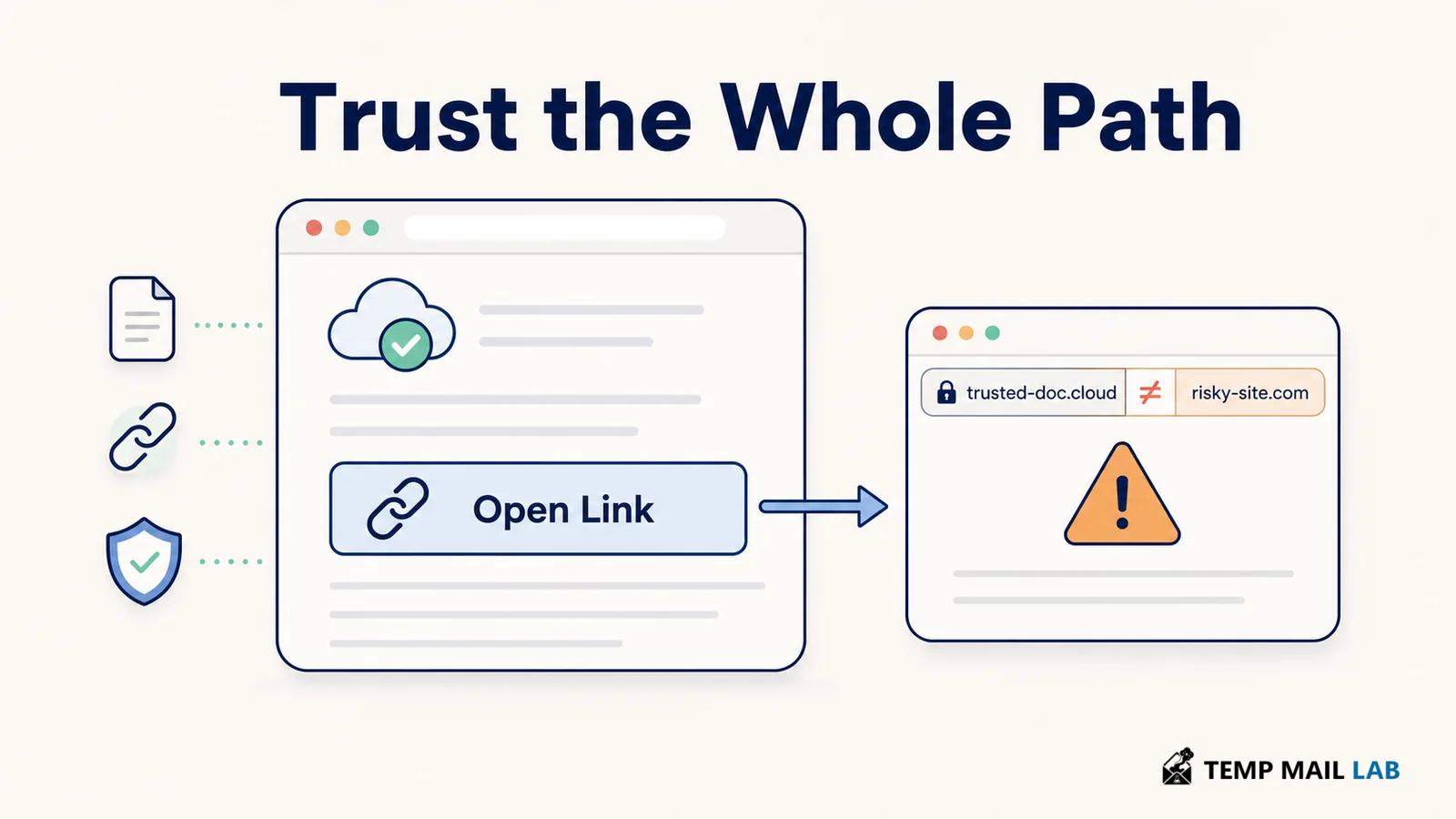
The button inside a real Drive file can point somewhere completely unrelated to Google. The same is true for a link inside OneDrive, Dropbox, a PDF, or another shared document.
Cloud storage gives people a place to upload and share content. It does not turn every link placed inside that content into part of the cloud provider.
That small distinction explains a lot of phishing that initially looks more convincing than an ordinary suspicious email.
How a legitimate cloud service can become the first step
Imagine that someone wants you to visit a fake Microsoft sign-in page.
Sending the fake page directly by email creates an obvious problem for them. The strange domain is visible immediately.
A shared document gives them another route.
The email can first lead to a genuine cloud service. Inside the document, there might be a company logo, a few lines about an invoice or contract, and a button marked "Open document."
The second click is the important one.
Once it happens, the browser may leave the cloud service and open a different website.
That website could ask for a Microsoft password, a Google account, a verification code, payment details, or something else the sender wants.
Nothing about this requires Google Drive or OneDrive itself to be fake.
The cloud platform is simply hosting content created by a user.
That is normal behavior for a file-sharing service.
The FTC describes phishing as attempts to persuade people to hand over passwords, account numbers, and other information, often through links or attachments. Its guidance recommends contacting the organization through a website or phone number you already know rather than relying on contact details in an unexpected message.
FTC phishing guidance
The first domain only tells you about the first page
Suppose the address bar currently shows drive.google.com.
That is useful information.
It tells you where the browser is right now.
It does not tell you where a button inside the document will send you next.
This sounds obvious when written out, but the visual experience can blur the two steps together.
You open a document.
You see a familiar logo.
You click a large "Continue" button.
A login page appears.
Because everything happened within a few seconds, the login page can feel like part of the document-sharing process even when the browser has moved to another domain.
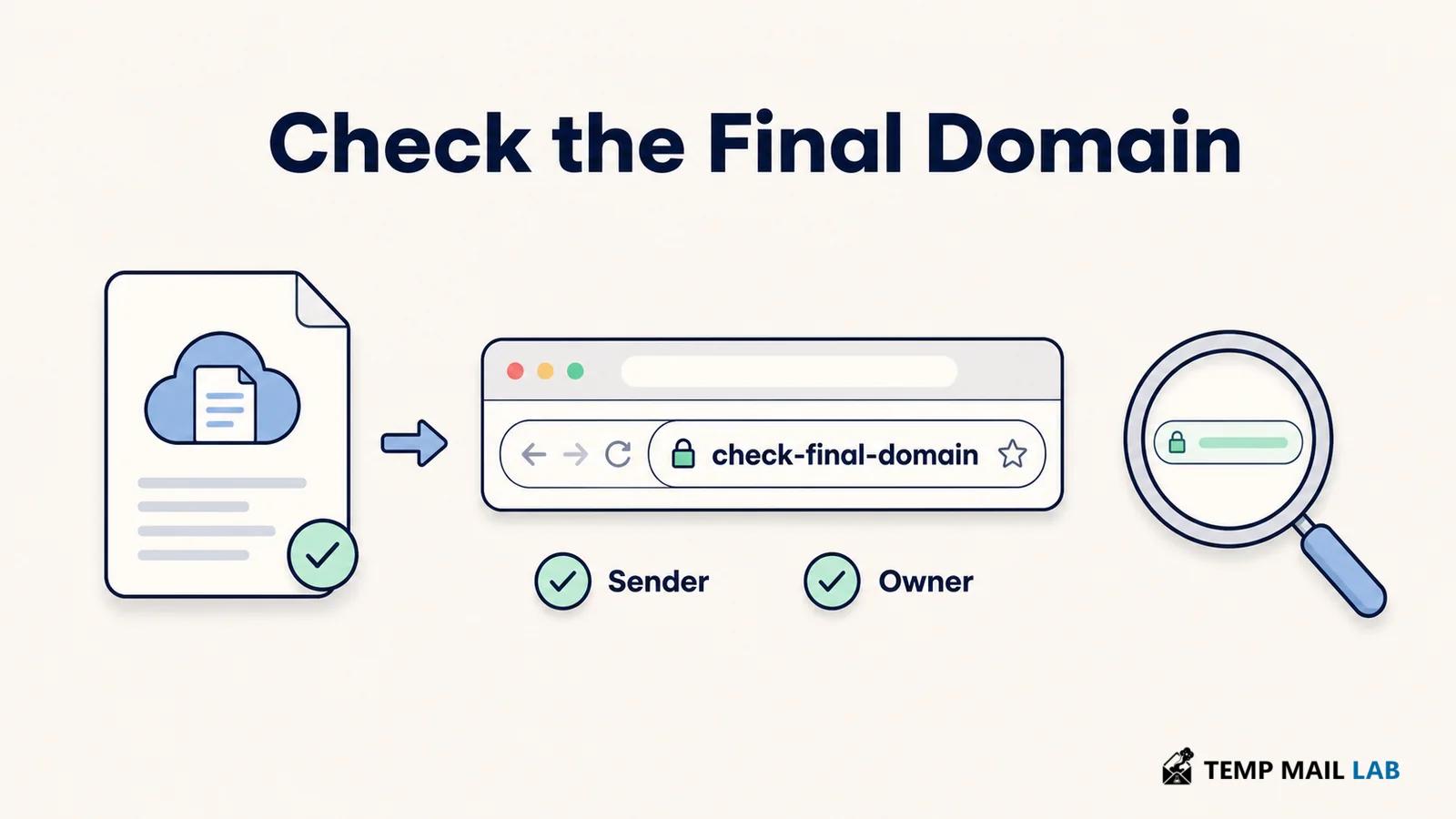
The address bar is worth checking again whenever the page changes.
A genuine cloud service may legitimately ask you to sign in before opening a file that was shared with a particular account. That is different from a document containing a graphic or button that opens a separate website and asks for credentials there.
If the second page is unexpected, close it.
Then open Drive, OneDrive, Dropbox, or whichever service was involved using a bookmark or an address you type yourself. If the file was genuinely shared with your account, you may be able to find it there without following the route supplied by the message.
Google says Drive performs security checks on some externally shared files for work and school users and can restrict access when phishing or malware is detected. Google also documents limits around what can be scanned.
Google Drive security guidance
That protection is useful, but it does not make every external destination inside a document trustworthy.
The sender gives you another piece of the picture
A file called "Updated Invoice" tells you almost nothing about who created it.
Look at the message around it.
Were you waiting for an invoice?
Does the sender normally contact you from that address?
Was there already a conversation about the document?
A file that appears in the middle of an existing discussion is different from one that arrives unexpectedly with a warning that payment must be made in the next hour.
The sender address deserves more attention than the display name.
Anyone can type a familiar name into the sender field of an account they control. The actual address may tell a different story.
Cloud services can provide another clue when they show the owner or sharing identity attached to a file.
Perhaps the email claims the document came from a coworker, but the sharing information shows an unfamiliar external address.
That does not automatically make the document malicious. People use outside accounts, consultants share files, and organizations sometimes work across several domains.
It does give you something concrete to verify.
For a request that matters, use another channel.
If a coworker supposedly sent a sensitive file, ask them in the company chat.
If a supplier suddenly wants new payment details, use the phone number already stored in your records.
Do not use a new phone number printed inside the suspicious document to verify the suspicious document.
Buttons are just links with better design
A document can make a link look almost like part of the cloud service itself.
It may be a large blue button.
It may have a Microsoft logo.
It may say "View Secure Document."
The appearance has no control over the destination.
On a desktop browser, hovering over a normal link can sometimes reveal where it points before you open it. That can help, although redirects and shortened URLs may hide the final destination until later.
Short links deserve a little more attention for exactly that reason.
They remove information you might otherwise have seen before clicking.
QR codes create the same problem in a different form.
A QR code is simply carrying data, often a URL. The document around it can be hosted on a real service while the encoded website belongs to somebody else entirely.
The phone usually becomes the next browser in the chain.
Scan the code and the decision moves from your laptop to your phone, where the full address may be less noticeable.
Our guide to what happens after you scan a QR code looks at that process in more detail.
PDFs do not need to contain malware to be useful in phishing either.
A perfectly ordinary PDF can contain a sentence saying that a document has expired and must be reopened online.
The dangerous part may not exist in the PDF at all.
It may be the website mentioned inside it.
Built-in security checks still matter
Large cloud platforms spend significant effort detecting malicious files, suspicious sharing, malware, and abuse.
That helps.
Microsoft says files identified as malicious in SharePoint, OneDrive, or Teams can be blocked to protect users and organizations.
Microsoft guidance for malicious files in SharePoint, OneDrive, and Teams
There is still a practical limit to what the platform can decide for you.
Consider a document containing nothing more than ordinary text and a link.
The file itself may not contain executable malware.
The linked website may have been created recently.
The document may also rely mainly on a believable story rather than a technical exploit.
A message saying "The bank details for this invoice have changed" can create a serious problem even if every file involved is technically harmless.
This is why the absence of a warning is not the same thing as approval.
If the provider blocks a file or displays a security warning, stop.
If no warning appears, continue judging what the document is asking you to do.
The context still matters.
A normal shared file usually fits into something you already understand
There is a useful difference between receiving a document and receiving a story.
Suppose a coworker tells you in Slack that they are about to share a presentation.
A minute later, the sharing notification arrives.
The file has their name on it, appears in the expected project folder, and contains the presentation you were discussing.
There is very little mystery to solve.
Now change the situation.
You receive an unexpected document from someone who appears to be in accounting. It says a payment problem must be fixed today. The file contains a button that opens another website, and that website asks you to enter your Microsoft password.
You now have several separate claims that need checking.
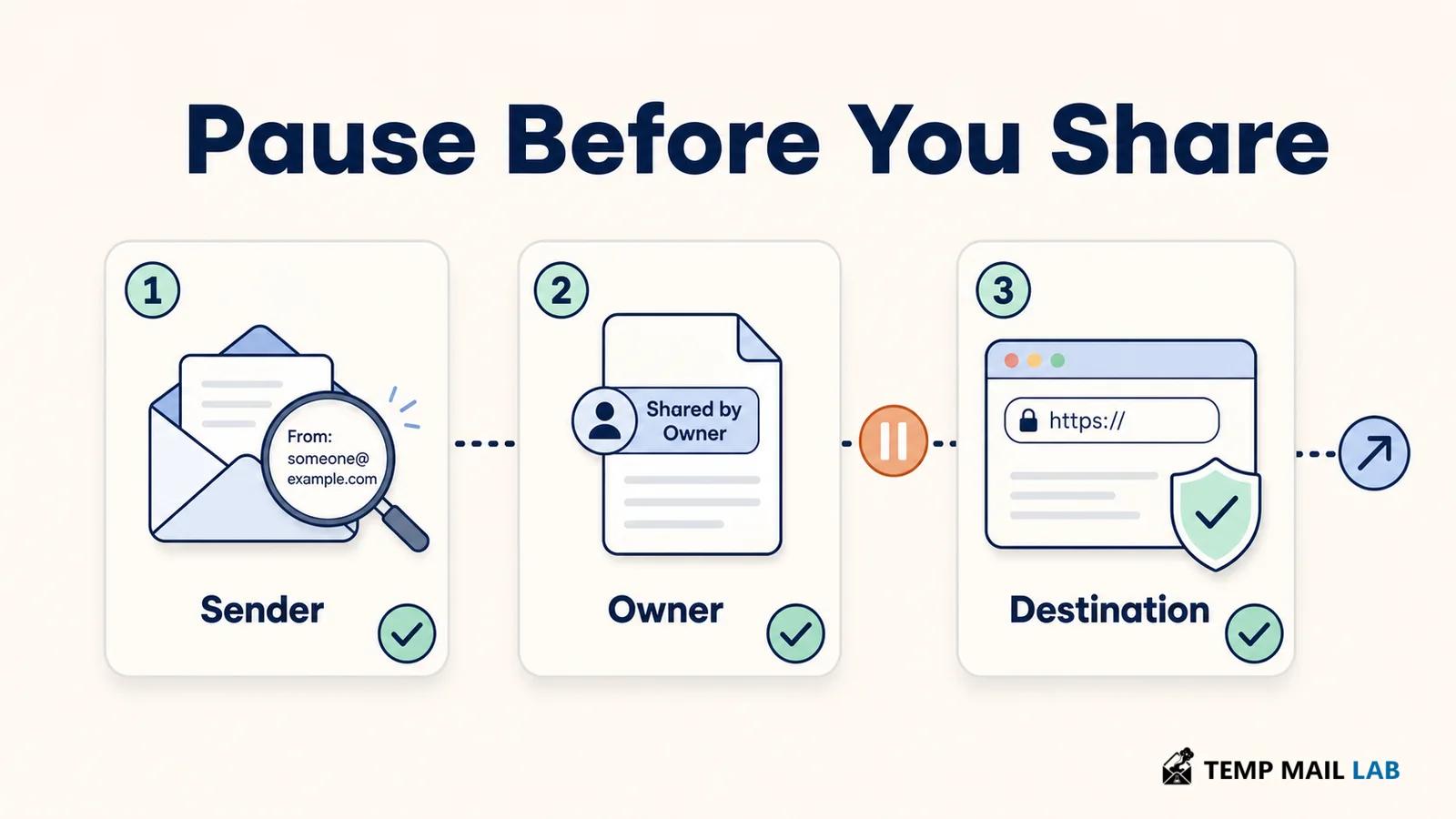
Is the sender really accounting?
Was there actually a payment problem?
Does the document belong to the organization?
Why did it send you to another domain?
Why does that domain need the password?
The cloud logo at the beginning does not answer any of those questions.
Dealing with a file you were not expecting
An unexpected share does not have to be opened through the message that announced it.
If somebody says they have sent me a Drive file, for example, I can open Drive the way I normally do and look at what has been shared with the account. OneDrive and other services provide similar ways to reach files without treating the email link as the only entrance.
That can clear up an ordinary situation quickly. The document may appear exactly where it should, with a familiar owner and a name that matches the work already being discussed.
Sometimes the file itself is all there is to see.
Other times it becomes a doorway to something else.
Perhaps the document contains an invoice and a button beneath it. Clicking the button opens another site. The useful information at that moment is no longer the Drive address I saw earlier; it is the address of the page now in front of me.
A QR code creates the same kind of handoff. The difference is that the next page usually opens on a phone rather than in the browser tab where the document was displayed.
The change of device can make the transition less noticeable. I may have started with a genuine OneDrive file on a laptop and still arrive at a completely unrelated domain after scanning the code.
The new destination has to make sense on its own.
That becomes especially important when the page wants something valuable.
A password request is a good example. If an unexpected shared file sends me to a page asking for my Microsoft password, I do not need to settle the question while staring at that page. I can close it, open Microsoft's service normally, and sign in there.
If there really is an account problem or a document waiting for me, it will still exist.
Payment requests can be handled in much the same way.
A supplier may genuinely change bank details, but the number already stored for that supplier is more useful for confirming the change than a new number printed inside the document announcing it.
The same applies to a coworker. A message through the company chat can confirm whether they actually sent the file.
None of those checks depends on proving that the original document was malicious.
They simply give the request another route through which to prove itself.
Opening the page is not the same as handing over an account
People sometimes realize something looked wrong only after clicking.
The next step depends on what happened after the click.
A Drive preview may have opened and nothing else happened. An external page may have loaded and been closed immediately. In either case, that is different from entering a password, approving a sign-in, or running a downloaded file.
If a download appeared unexpectedly, leave it unopened until you know what it is and why you received it.
Credentials need a different response.
If you typed a password into a page and later noticed that the domain was wrong, go to the real service independently and change the password there. The account's recent activity can show whether somebody else has already tried to use it.
A reused password also creates work elsewhere because the same credential may protect more than one account.
Multi-factor authentication helps with part of this problem, but it does not make every phishing page harmless. A fake sign-in page can ask for a one-time code after collecting the password.
The code belongs only in the authentication flow you intended to use.
Another sign-in can be completely legitimate
Cloud sharing often crosses account boundaries.
A company may restrict a document to employees. A project file may only be available to one Microsoft account. Google Drive can ask you to switch accounts before it shows a file shared with a particular address.
Seeing another sign-in page is therefore not enough to call something phishing.
The domain provides useful context.
If a Microsoft file takes you into Microsoft's own authentication system, that fits a familiar account flow. A document that sends you to an unrelated domain which merely looks like Microsoft deserves a different reaction.
There is an easy way to avoid debating the design of the page.
Close it and go to the cloud service normally.
Sign in there and find the file from inside the account.
A genuine sharing request survives that detour.
QR codes do not change the trust problem
A QR code often looks less like a link because there is no visible URL to read in the document.
The phone still has to turn the code into something.
Often that something is a web address.
Once the phone opens it, the destination matters in exactly the same way it would if the link had been clicked on a laptop.
A real PDF can contain the code.
A real company logo can sit beside it.
The cloud service hosting the file can also be real.
None of those things determines where the QR code points.
This matters most when the phone suddenly shows a login or payment page. The page has its own address, and that address deserves attention before anything sensitive is entered.
Our guide to what happens after you scan a QR code goes further into what the phone does after a scan.
Several services can appear in one short journey
A shared-document link can pass through more systems than it first appears to.
The email may come through Gmail or Outlook. Drive may host the document. A short-link provider can handle a redirect. The final page can sit on another hosting company entirely.
Those services are not one security boundary.
Imagine receiving a Dropbox link from someone you know. Dropbox really hosts the file, so the first page is exactly where it claims to be. Inside the file is a link saying that payment details have moved.
Open that link and the browser leaves Dropbox.
The fact that the previous page was genuine does not tell you who owns the new one.
OneDrive works the same way. Microsoft can genuinely host a document containing a link that Microsoft did not create.
Once the browser moves, the new destination gets its own check.
That is the habit that makes these chains much easier to reason about.
You do not have to decide whether the entire journey is "real" or "fake" as one object. Instead, look at what is happening at the current step.
A cloud provider may genuinely host the file.
The sender may genuinely own the account that shared it.
A button inside that file can still point somewhere unrelated.
Or the opposite may happen: an unexpected share may eventually turn out to be completely ordinary after the sender confirms it.
The details do not all have to point in the same direction.
What matters is knowing which part each detail actually tells you about.
A familiar logo says very little about a later website. A correct Drive domain tells you a great deal about the Drive page currently open, but nothing automatic about the destination of the next link.
That is the useful boundary to keep in mind whenever a shared file asks you to leave the service that is hosting it.