
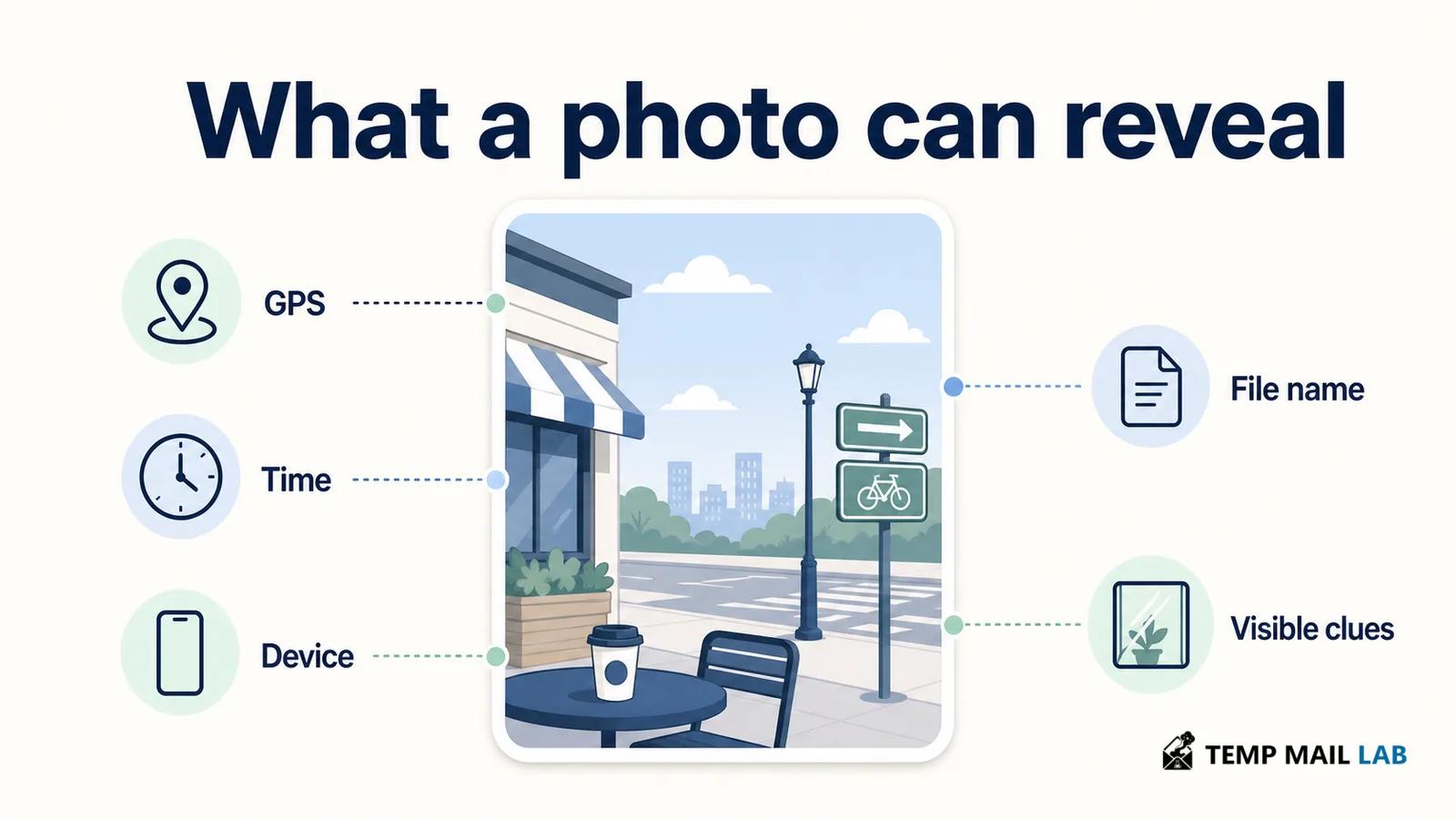
Educational purpose: This guide explains the topic in clear language to help readers make safer, informed, and lawful choices.
A photo can carry more information than the scene you intended to share. The file may contain location data, a capture time, camera details, or a name that reveals where the image came from. The picture itself can add another layer. A street sign, a reflected screen, a travel document, or a house number may identify a place even when the file has no GPS data.
The risk is not that every photo exposes your exact address. Many images contain little or no sensitive information. The useful habit is to check both the file and the frame before you post, send, or upload a photo.
Quick answer
A photo may reveal GPS coordinates, capture time, device information, file details, and visual clues in the background. Check the photo's information panel, inspect the image at full size, review the file name, and remove or hide details that the recipient does not need. Location settings and sharing controls vary by device and service, so verify the copy you plan to share.
What hidden data can a photo contain?
Metadata is information stored with a digital file. Some of it describes how the file was created, while other fields help apps organize, search, or display it. A phone may add metadata when its camera saves a picture. An editing app may add or change fields later. A messaging service may strip some information during upload, but you should not assume that every service handles files in the same way.
Location and capture time
If the camera has access to location services, a photo can include coordinates for where it was taken. Apple explains that its Camera app can use cellular, Wi-Fi, GPS, and Bluetooth information to determine a location and embed it in the photo.
Google Photos also distinguishes between locations supplied by the camera, locations added by a user, and locations it estimates from landmarks or other photos. See Google's location guidance for the differences.
A capture date and time can also matter. The time may show when the image was created, which can reveal whether you were at home, at work, or away on a particular day. The time alone does not prove a location, but it can add context when combined with a calendar, a travel post, or a visible event.
Phone and file details
EXIF fields may identify the camera manufacturer, model, orientation, lens information, and some settings. The exact fields depend on the device and the software that created or exported the file. An editing program can also leave a software name or other processing information.
The file name is a separate clue that people often overlook. Names such as IMG_4821.jpg are usually unhelpful, but a file named after a customer, address, school, project, or trip can disclose information before anyone opens the image. Captions and descriptions can do the same.
What metadata may reveal
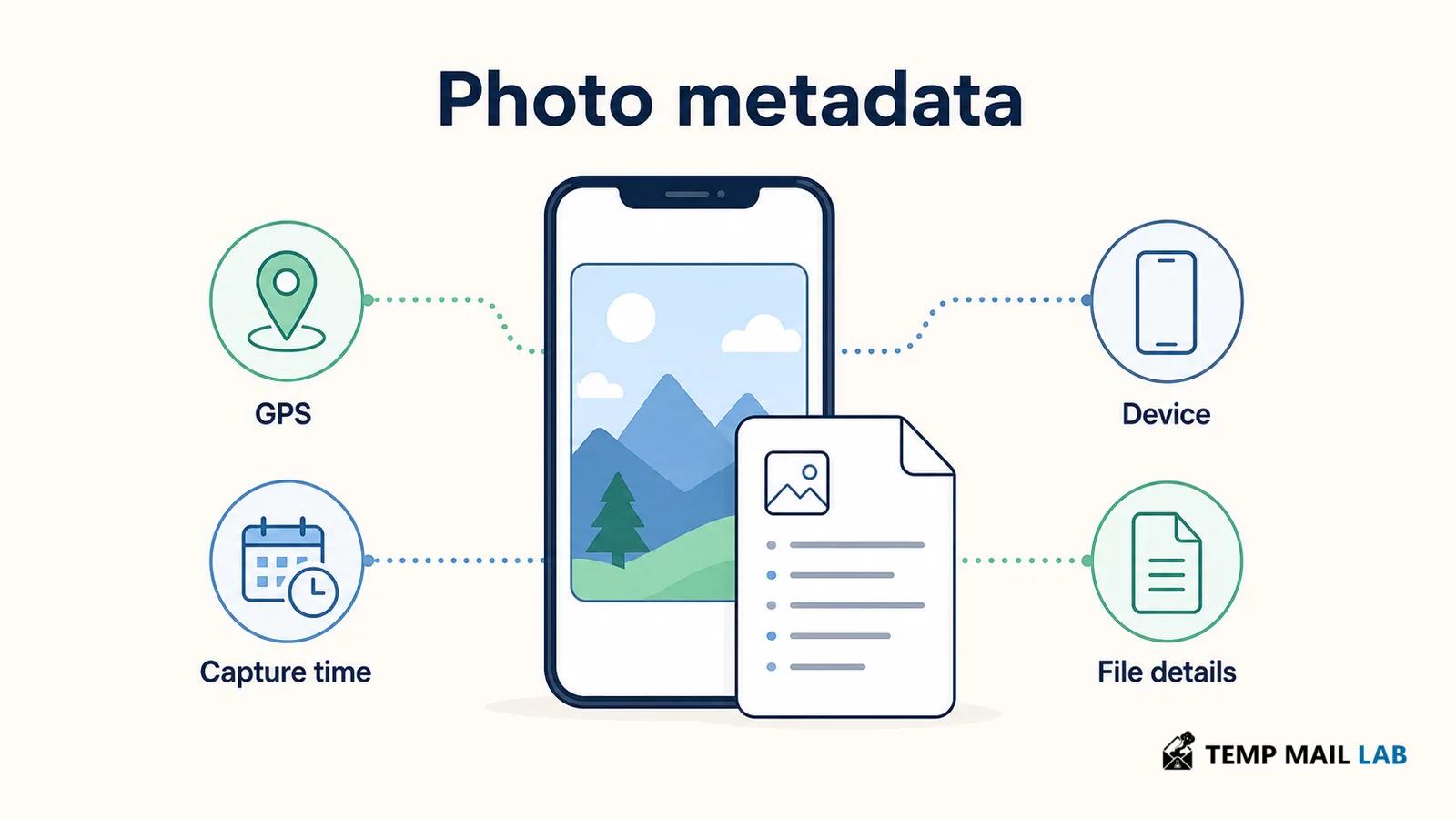
Before sharing a photo, consider which of these details could matter in your situation:
- GPS coordinates or a saved location that points to a home, hotel, workplace, or regular meeting place.
- The date and time the camera recorded the image, including details that may remain in an exported copy.
- The phone or camera model, orientation, lens information, and other technical fields.
- Editing software, captions, creator information, or copyright fields that an app or workflow added.
- A file name that includes a person, organization, address, booking reference, or private project.
Not every file contains every field. A screenshot, export, or upload may remove some original metadata, while another workflow may preserve it. That is why a privacy check should focus on the exact copy you intend to send, not only the original in your camera roll.
What people can see without opening metadata
Visible details can be easier to understand than EXIF data because they appear in the image itself. Google notes that people may guess a photo's location from landmarks even when location details are not included in sharing.
The same principle applies to smaller clues that look ordinary when you take the picture.
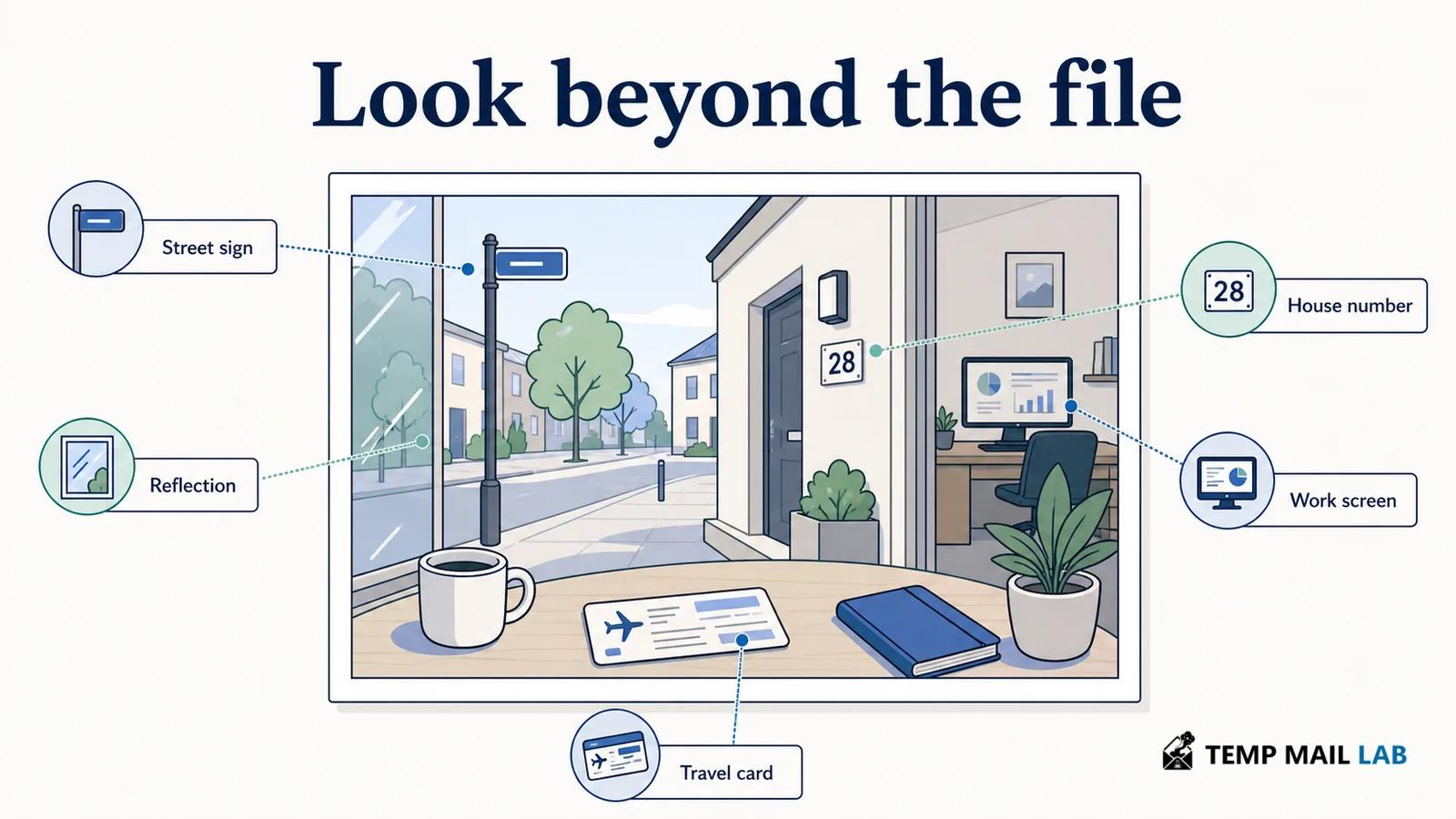
- Street signs, transit maps, storefronts, road markings, and distinctive buildings can identify a neighborhood or route.
- Reflections in windows, mirrors, glasses, or glossy objects can show a phone screen, another person, a room, or a nearby sign.
- Boarding passes, shipping labels, employee badges, school papers, and appointment cards can expose names, numbers, dates, or destinations.
- House numbers, apartment entrances, mailboxes, vehicle plates, and delivery details can connect a photo to a specific place.
- A home office or workplace background can reveal a company name, internal document, access badge, calendar, or equipment layout.
A background does not need to reveal one decisive fact to create a privacy problem. Several small details can make a location or routine easier to infer. Review the edges of the frame as carefully as the subject in the middle.
Why separate clues can reveal more together
Privacy risk often comes from combining ordinary details. A phone model may say little by itself. A capture time may also seem harmless. A visible train station, a public post about a trip, and a file name can create a much clearer picture when someone connects them.
This does not mean a viewer can always identify you or locate you precisely. It means that information can become more revealing when it is repeated across posts or combined with public context. Treat the review as a check on your own exposure, not as a method for identifying or tracking someone else.
Photo data is also separate from the browser and device signals that websites can collect when you visit them. You can reduce one type of exposure without removing the other, so avoid treating a single privacy setting as a complete solution.
How to check a photo before sharing
Use a short review each time you share a photo that includes your home, travel, work, family, or documents.
- Open the information panel. On iPhone or iPad, select the photo in Photos and view its information. Apple documents options for reviewing location data and removing it. On Android, check the camera's location setting and the information available in your photo app.
- Check the sharing screen. Some services let you turn off location for a particular share, album, link, or conversation. Google Photos explains that location handling depends on whether the data came from the camera, was added manually, or was estimated.
- Inspect the file on a computer when the photo matters. A metadata reader such as ExifTool can display information stored in a file, but read the result as a diagnostic report, not as proof that every possible copy is clean.
- Zoom into the full image. Check corners, reflections, screens, labels, documents, vehicle plates, windows, and anything visible behind the main subject.
- Read the file name and caption. Replace names that expose a person, address, customer, trip, or private project.
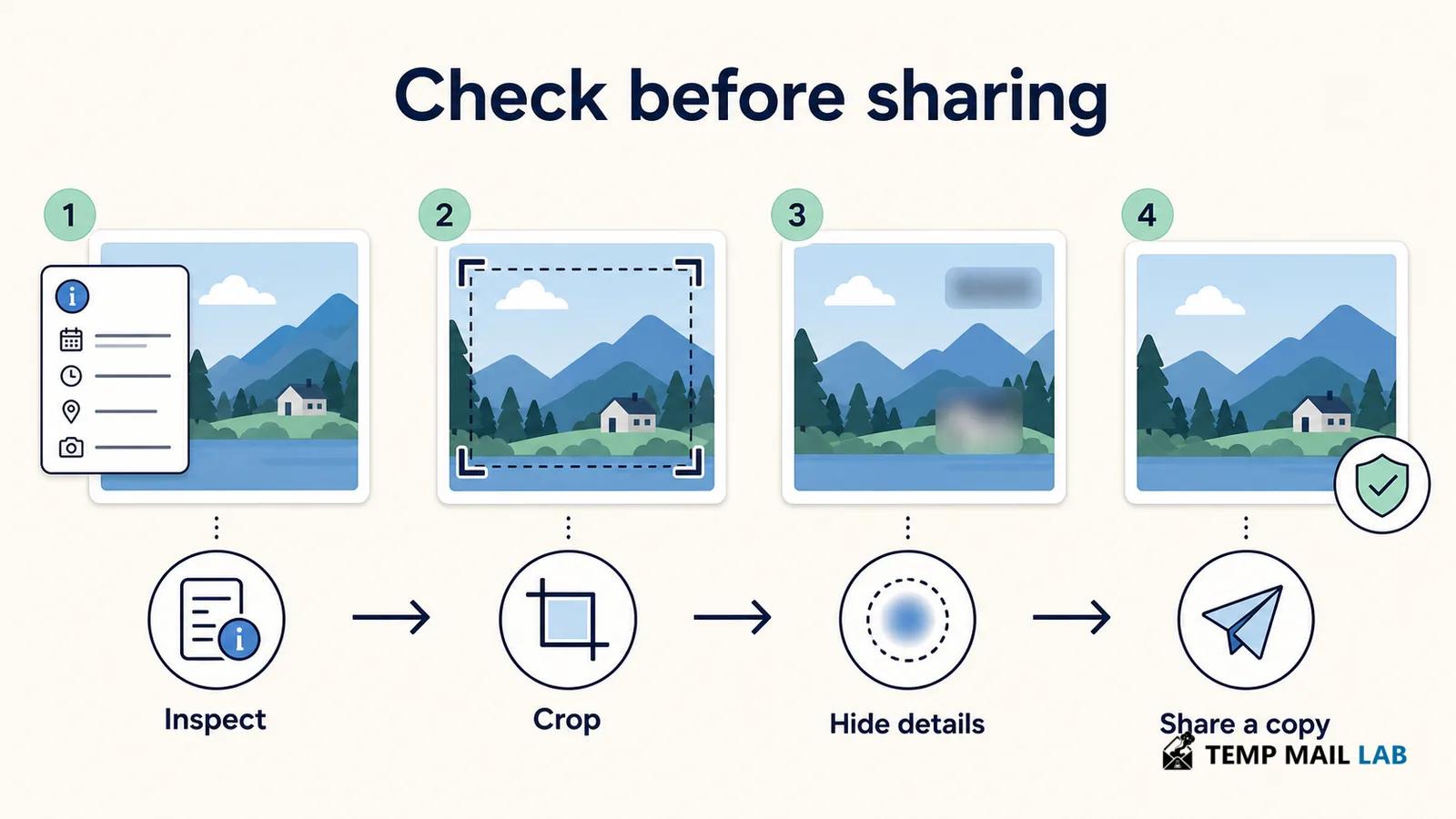
A useful check is to create the exact copy you plan to share, inspect that copy, and then open it as a normal viewer would. This catches both file-level details and visible details. Keep the original private if it contains more information than the shared version.
How to reduce the information you share
Start with the camera settings you control. If you do not need location attached to new photos, remove the Camera app's location permission or turn off the camera's location option. On Apple devices, you can also turn off Location when using the Photos share sheet. The labels and steps differ across Android phones and photo apps.
For an existing image, remove location data where the app provides that option, or create a cleaned copy with a trusted tool. Keep the original separate until you confirm that the new file opens correctly and no longer contains the fields you meant to remove. Metadata removal is not the same as deleting information visible in the picture.
Edit the frame as well as the file. Crop out house numbers, documents, badges, and screens. Blur or cover sensitive text and faces when appropriate. If you cover text, use an opaque edit and check the final exported image. A translucent mark or a crop that leaves part of a number visible may not hide the information.
Rename the cleaned copy with a neutral file name. Review the caption and any message that accompanies it. If a platform offers a location sharing control, check it each time instead of relying on a previous choice. Settings, compression, previews, and metadata behavior can change between services.
No single step removes every privacy concern. A file can lose its GPS field and still show a street sign. A carefully cropped image can still carry a device model or capture time. The safest routine checks the metadata, the visible frame, the file name, and the destination together.
Frequently asked questions
Does every photo contain GPS data?
No. GPS data depends on the camera, permissions, device settings, and how the file was created or exported. A photo without GPS data can still reveal a place through visible landmarks.
Does taking a screenshot remove every privacy clue?
A screenshot may change or remove some original metadata, but it does not remove text, reflections, landmarks, or other details visible in the new image. Review the screenshot itself.
Is cropping enough to protect a photo?
Cropping can remove visible details, but it may not remove metadata that the editing app preserves. Inspect the exported copy and check the remaining frame before sharing.
Conclusion
A photo can carry location, time, device, and file information, while the image itself can reveal signs, reflections, documents, and places. None of these clues appears in every photo, and none should be treated as proof of an exact identity or address. A careful review is still worthwhile. Check the information panel, inspect the full frame, read the file name, remove details that are not needed, and verify the copy you plan to share. That small routine keeps ordinary photos from disclosing more than you intended.